
What is an Archiving workflow?
An Archiving workflow template is used to upload external documents directly to your Precisely archive. Using an archiving template allows you to automate metadata, reminders, and archiving rules for all documents uploaded using the template.
What is it used for?
Archiving templates are used to upload external documents that only need to be stored in the archive and do not need to go through approval, review, or signing processes.
Note: Precisely's Archiving Workflow templates are designed for uploading individual documents. If you need help with bulk importing external documents and want to take advantage of our automation features, learn more here about how we can help.
How do I create an Archiving Workflow?
Admins and Managers can create an archiving workflow by navigating to the Workflow Templates page and selecting the New template button.
- Select Archiving workflow
- Enter a title and description
- Click Create
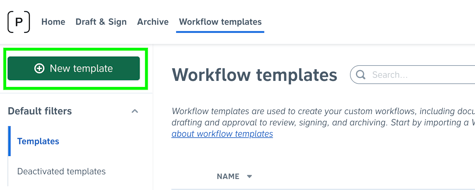
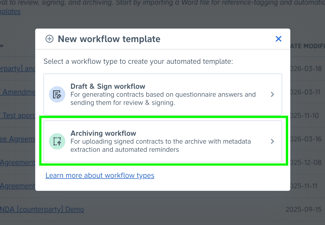
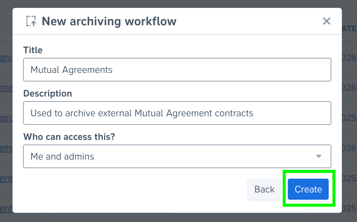
Archiving Workflow Template Settings
On the archiving workflow template page, you can manage the following:
Uploading Permissions
- Uploading permissions to allow uploads of documents during drafting are enabled by default on archiving templates.
- You can enable permissions for member users to upload appendices to uploaded documents.
Uploaded Files & Metadata Tags
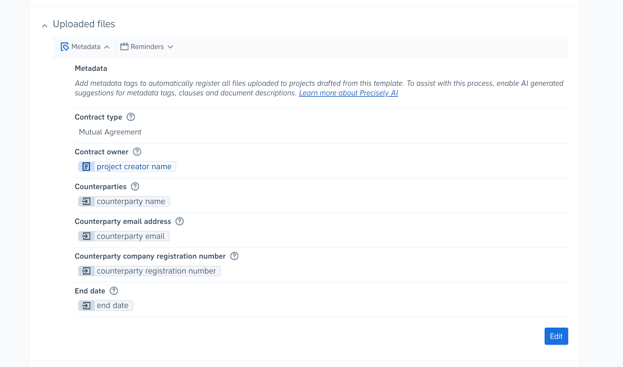
In the Uploaded files section, add the metadata tags to be included on documents uploaded using the template.
Metadata tags without AI
- Add metadata tags that should be included on documents uploaded using the template.
- Metadata tags can be populated by:
- Prefilled answers
- System references (e.g., project creator name)
- References created within the template itself:
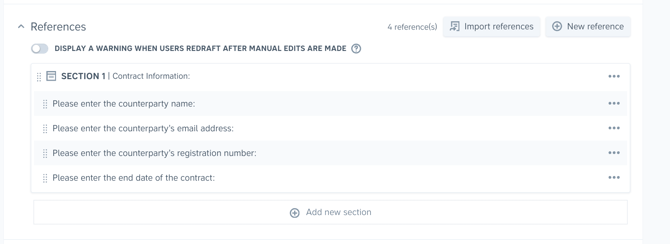
Metadata tags with AI enabled
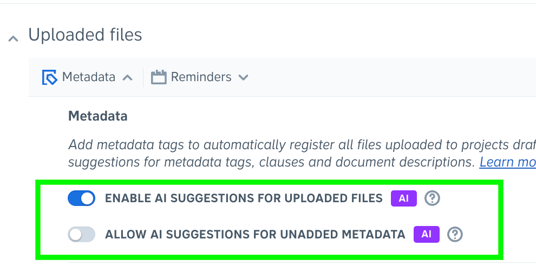
To use AI for metadata suggestions on uploaded documents:
- An Admin user must enable it in Organisation Settings by turning on the Enable AI For Projects Drafted From Templates toggle.

Once enabled:
- You can enable AI suggestions for uploaded files.
- Optional: Allow AI suggestions for unadded metadata.
After enabling AI suggestions on the template:
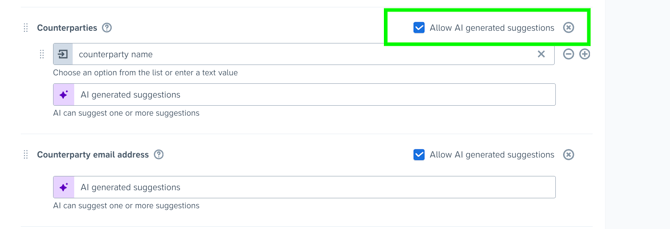
- Select which metadata tags should allow AI suggestions using the checkbox next to each tag.
- You can:
- Combine AI suggestions with manual input and reference answers
- Use only AI-generated suggestions for certain tags
This flexibility allows configurations that align with your metadata structure.
Automatic Reminders
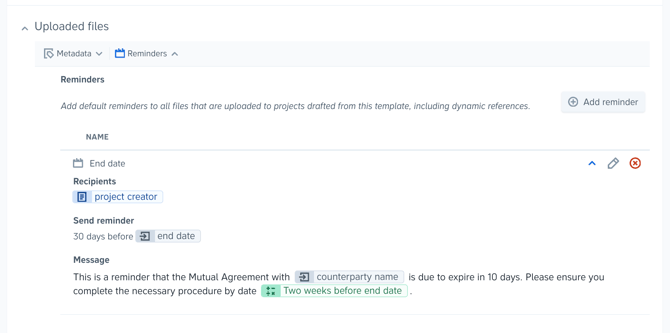
- Reminders set up on the archiving template will automatically apply to all documents uploaded using the template.
- References and formulas created in the template can be used to automatically populate:
- Recipients
- Reminder dates
- Messages
Learn more about Precisely's reminder automation feature.
Automated Archiving
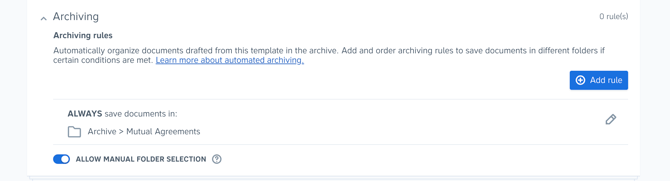
- Add archiving rules to determine where documents uploaded using the template will be stored in the archive.
- You can enable manual folder selection to allow users to choose where the document will be stored.
Learn more about automated archiving.
How do I change workflow type on an existing template?
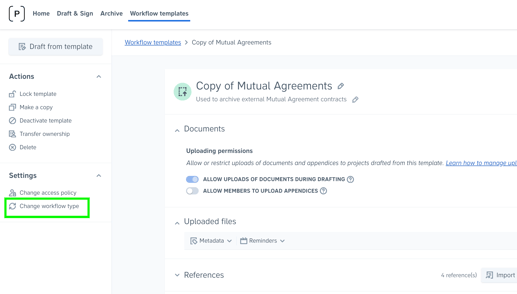
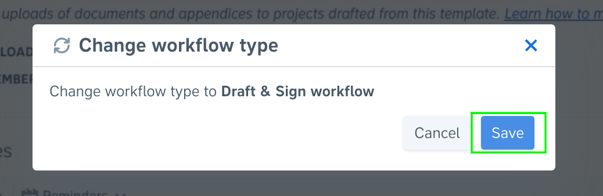
To convert your Archiving workflow template into a Draft & Sign template:
- Select Change workflow type on the left-hand side of the page
- Click Save
Note: Converting an existing Draft & Sign workflow to an Archiving workflow will result in loss of settings that are not supported in Archiving templates, including:
- Template documents
- Default signees
- Approval automation
It is recommended to always create a copy of your template before converting it.