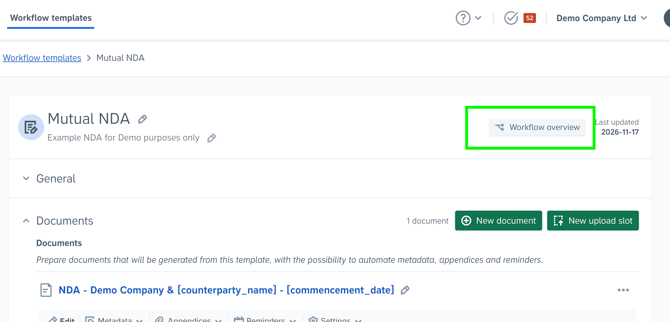
The Workflow overview gives you a visual representation of the steps and processes included in a contract template. It allows you to quickly understand how a project created from the template will progress, from the initial drafting stage through approval and signing to post-signing activities.
Instead of navigating through each section of the template individually, you can use the overview to see the entire workflow in one place.
Access the Workflow overview
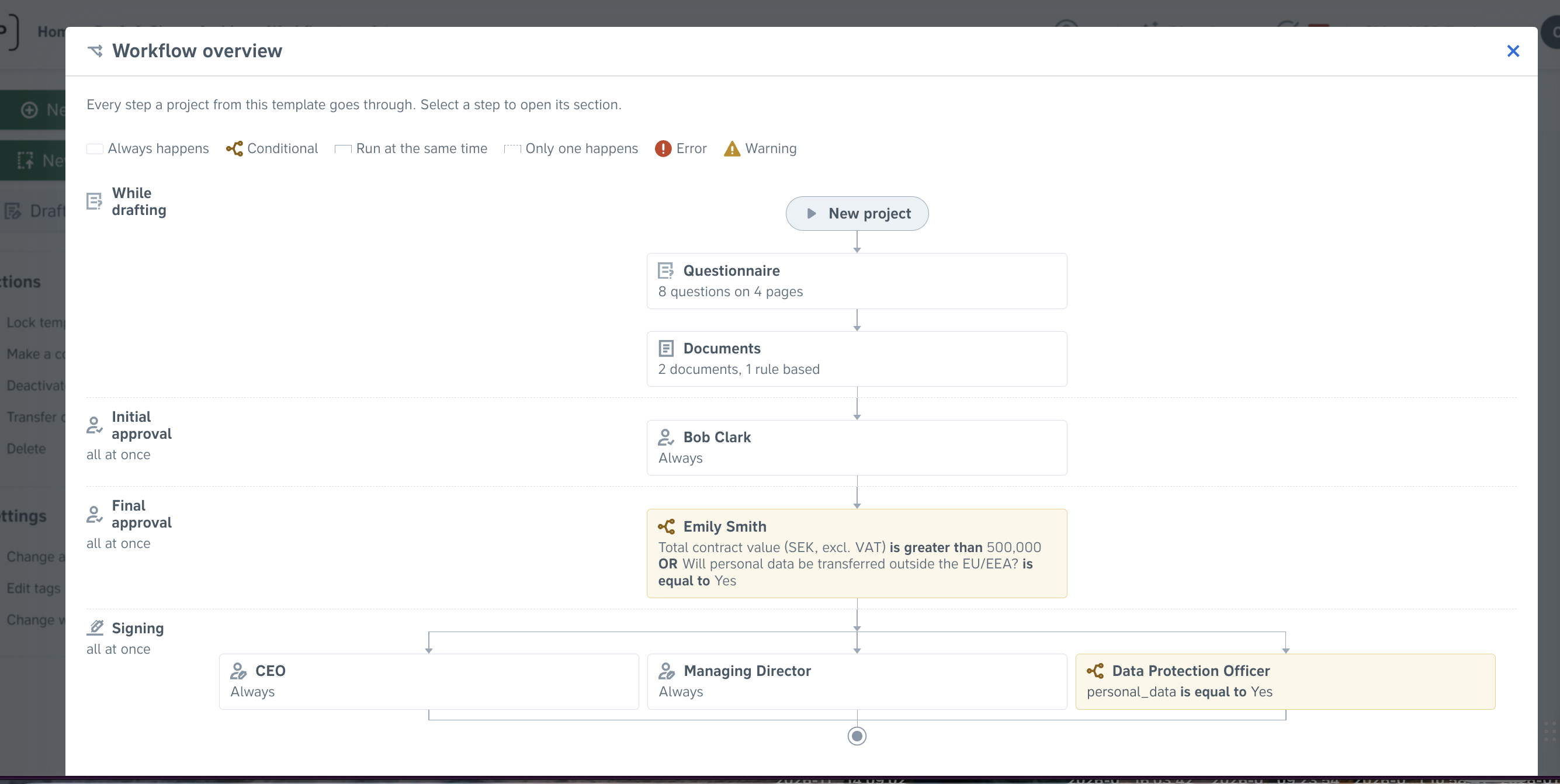
To open the Workflow overview:
- Navigate to Templates.
- Open the template you want to review.
- Click Workflow overview in the template header.
The overview opens as a flowchart, showing the different stages of the workflow and how they are connected.
Understanding the Workflow overview
The workflow is divided into four main phases:
1. Drafting
This phase shows the steps involved in creating the contract, including:
- Questionnaire
- Documents
- Checks (Guardrails)
2. Approval
This phase shows how the approval process is configured, including:
- Who needs to approve the contract.
- Whether approvals happen simultaneously or one at a time.
- Any conditions that determine when an approval step applies.
3. Signing
This phase shows the signing process, including the signees and the order in which they are expected to sign.
4. After signing
This phase shows what happens once the contract has been signed, including:
- Archiving rules
- Reminders
- Active contract settings
Understanding conditions
Some workflow steps are conditional, meaning they only apply when specific criteria are met.
These steps are marked as conditional in the overview, with a description of the condition that triggers them.
For example, an approver may only be included if a particular answer is selected in the questionnaire.
This makes it easier to understand how different questionnaire answers or conditions affect the resulting workflow.
Identifying and resolving template issues
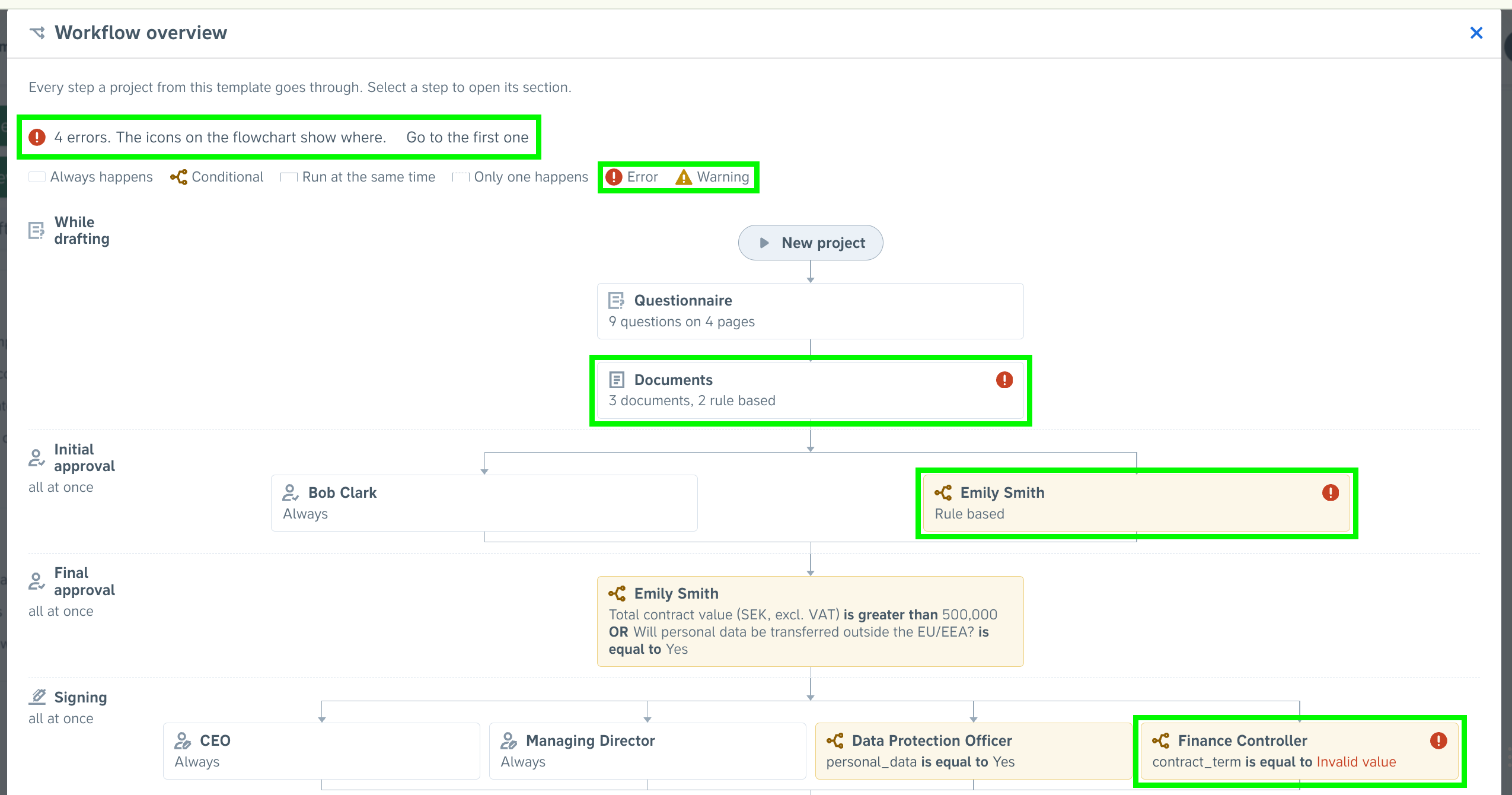
The Workflow overview also highlights errors and warnings in your template configuration.
If an issue is identified:
- An error or warning icon appears on the Workflow overview button and next to the relevant step in the flowchart.
- A summary at the top of the overview shows the identified issues.
- Selecting an issue in the summary takes you directly to the first relevant issue in the overview.
To investigate or resolve an issue, click the relevant step in the flowchart. The overview will close, and you will be taken directly to the section of the template where that step is configured.
Good to know
- Read-only overview: The Workflow overview is for reviewing your template configuration. You cannot make changes directly in the flowchart. To make changes, navigate to the relevant template section.
- Large templates: Long lists of approvers or rules may be collapsed to keep the overview easy to navigate. Select Show all to expand the full list.