You can save your organization's legal entity details in Precisely and use them to automatically populate company information in your contract templates.
This helps ensure that your organization's legal details are consistent across contracts, without requiring users to manually enter the information each time they start a new draft.
Configure your organization’s entity details
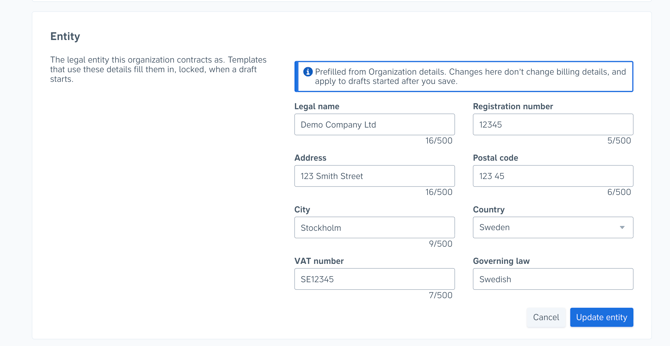
Admins can manage the organization's entity details under Organization settings → Entity.
The following information can be saved:
- Legal name
- Registration number
- Address
- Postal code
- City
- Country
- VAT number
- Governing law
The fields are initially prefilled using your organization's existing details. You can review and update them as needed. Changes to these fields do not affect your organization's billing details.
Note: Only Admins can edit the entity details.
Use entity details in templates
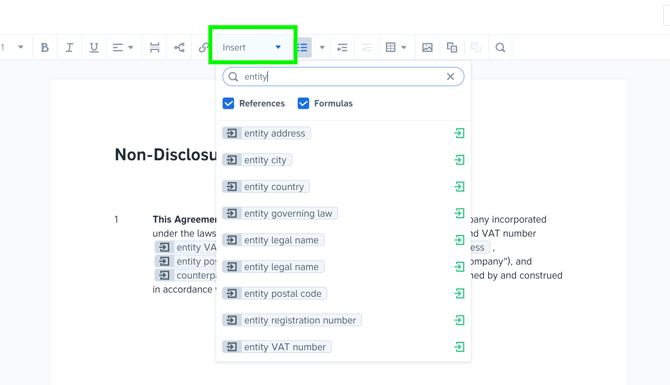
Entity details can be added to contract templates using entity references. You can also use entity references in template conditions.
In the template editor, go to Insert and select the relevant entity reference, such as:
- Entity legal name
- Entity registration number
- Entity address
- Entity VAT number
- Entity governing law
When a new draft is started using a template, these references are automatically populated with the saved entity details and locked, meaning users cannot change them when filling in the questionnaire.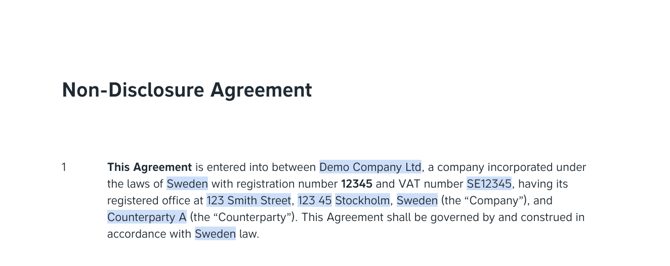
Note: Text, including automatically populated entity details, can still be edited in project documents by Admins and Managers with editing access when using Edit mode.
Entity details and template warnings
Precisely checks whether the entity details required by your templates have been configured.
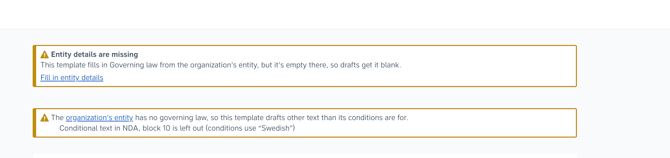
If a template uses an entity reference for which no value has been saved, a warning appears on the template page identifying the missing information. Admins can follow the link in the warning directly to the Entity settings to complete the details.
Precisely also checks whether the governing law conditions in a template match the organization's saved governing law.
If there is a mismatch, a warning appears on both the template page and the Entity settings, identifying which template may produce different text in a draft.
These warnings help Admins identify missing information or potential configuration issues before users start a new draft.
Good to know
- Changes apply to new drafts: Updates to entity details only affect drafts started after the changes have been saved. Drafts that have already been started retain the values they had when they were created.
- Admin permissions: Only Admins can edit entity details. Managers can see relevant warnings on template pages but do not have access to the Entity settings link.
- Member and Viewer permissions: Members and Viewers will not see any new settings or warnings.