What Is Metadata Validation?
Metadata validation is an optional organization-level setting that requires users to review metadata tags on manually edited or imported documents before those documents can be sent for final approval or for signing.
What Is Metadata Validation Used For?
Metadata validation helps prevent metadata tags from being inaccurate or inconsistent with the content of the contract document itself. When enabled, users must ensure that all metadata tags correctly reflect the document content before proceeding to final approval or signing.
How to Enable Metadata Validation
Only admin users can enable metadata validation.
To enable metadata validation:
-
Go to the Organization settings page.
-
Turn on the Metadata validation toggle.
Once enabled, metadata validation applies across the organization.

How to Enable AI for Metadata Validation
Enabling AI for metadata validation is optional.
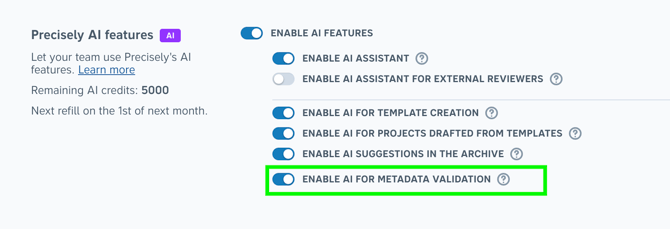
When AI is enabled, the system can generate suggested changes to metadata tags based on the content of the document.
To enable AI for metadata validation:
-
Go to the Organization settings page.
-
Navigate to the Precisely AI features section. Ensure that the Enable AI Features toggle is switched on.
When Is Metadata Validation Required?
When metadata validation is enabled:
-
It is required for manually edited or imported documents.
-
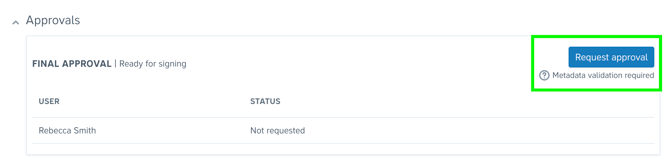
When final approvals are active on the project, validation must be completed before final approval is requested.
-
When there are no final approvals active, validation must be completed before the document is sent for signing.
When metadata validation is required, users will see a Metadata validation required indicator:
-
Under the Request approval button if final approvals are active, or
-
Under the Send for signing button if no final approvals are active.

How to Validate Metadata Without AI
-
Click Request approval or Send for signing.
-
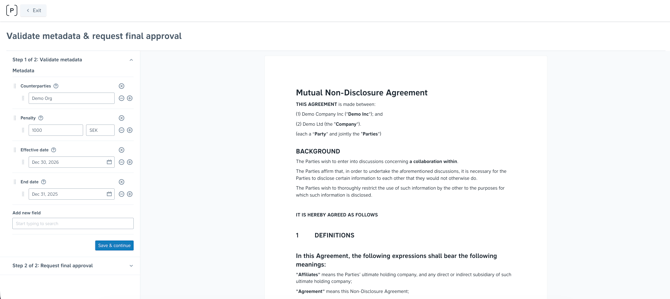
The Metadata validation page opens and displays the published version of the document.
-
Review the metadata tags shown on the left-hand side of the page.
-
You can:
-
Edit existing metadata tags
-
Remove metadata tags
-
Add new metadata tags
-
-
Click Save and continue to save your changes. Note: Exiting out of the page will lose any unsaved changes made to metadata tags.
-
If approval is required, request final approval. Otherwise, check signee information and send for signing.
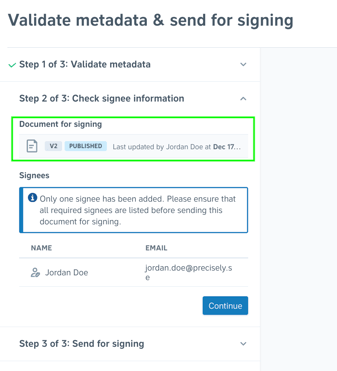
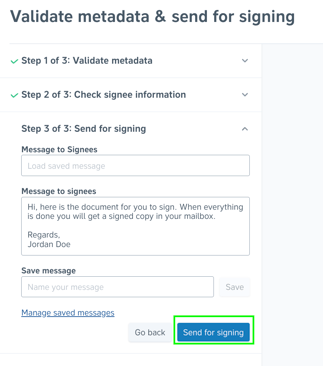
Important: Ensure that you always check signee information to review the document version and signee information, as changes cannot be made without cancelling signing.
How to Validate Metadata Using AI
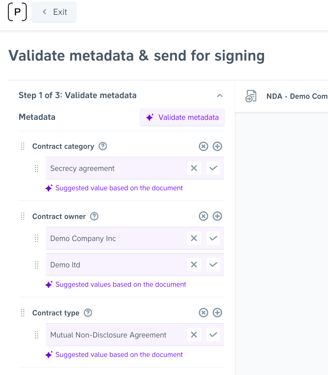
When AI is enabled for metadata validation, users will see a Validate metadata button on the metadata validation page.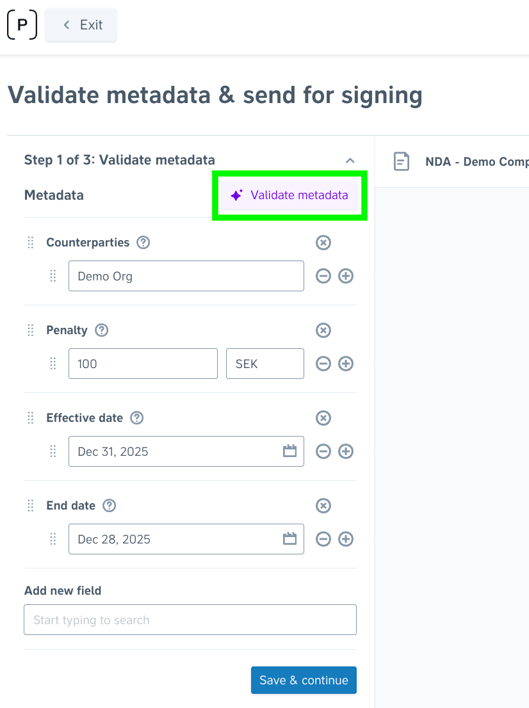
Applying AI Suggestions
-
Click Validate metadata.
-
AI generates suggested metadata values for existing metadata tags based on the document content.
-
Review each suggestion to compare the values and ensure correctness.
-
Accept or dismiss suggestions using the tick or cross buttons.
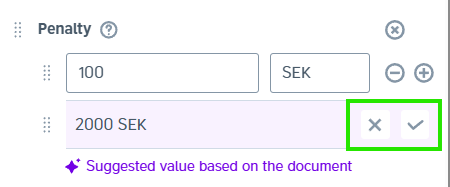
Example:
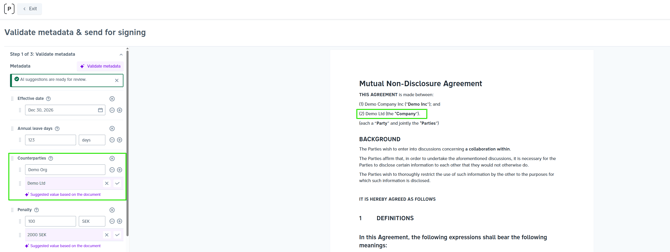
If the Counterparties metadata tag contains the name “Demo Org”, but the document content has been updated to “Demo Ltd”:
-
Clicking Validate metadata will suggest “Demo Ltd” as a metadata value for Counterparties.
-
You can accept the suggested value and remove the incorrect one.
AI Metadata Suggestions for Uploaded Files
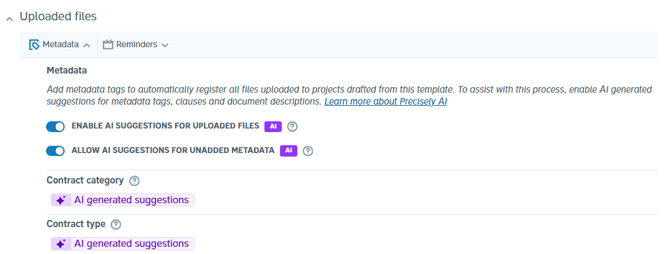
AI metadata suggestions for uploaded files are also available on the metadata validation page.
When AI metadata suggestions are enabled for uploaded files on a template:
-
Users can review, accept, or dismiss suggestions for uploaded files during the metadata validation step.