
Sending a document for review
- Open your intake workflow project.
- Add the reviewer's name and email under the Reviewers tab
- (Optional) Include a message for the reviewer.
- Under Reviewer access, select Allow suggestions with Word.
This permission allows the reviewer to:
- Download the document as a Microsoft Word file.
- Make suggestions and comments using Word's review tools.
- Upload the updated document back into Precisely.
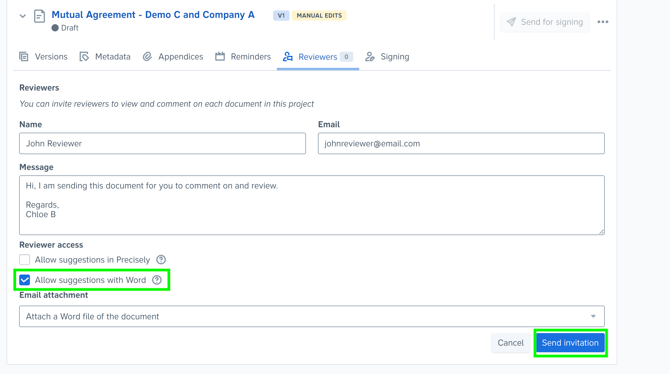
Optional: Attach the Word document to the email
When sending the review invitation, you can choose to attach the Word document directly to the email.
If enabled, the reviewer can download the document immediately from the email instead of accessing the review page first.
If you don't attach the file, the reviewer will:
- Open the review invitation.
- Complete any required authentication.
- Download the Word document from the Precisely review page.
Reviewing the document in Microsoft Word
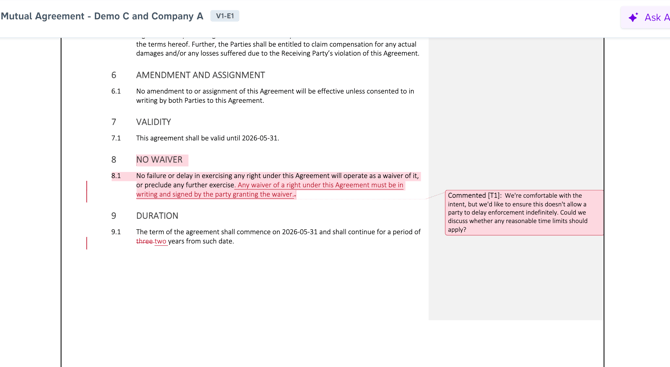
When the document is opened in Microsoft Word, Track Changes is automatically enabled.
The reviewer can:
- Add tracked changes.
- Insert comments.
- Save the document.
- Upload the updated Word file back to Precisely once their review is complete.
Uploading the reviewed document
After completing their review, the reviewer uploads the updated Word document through the Precisely review page.
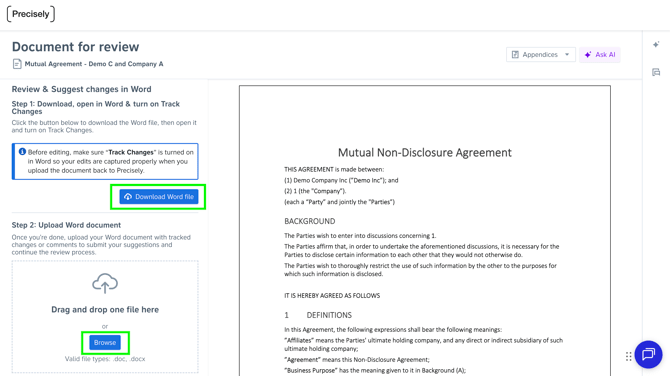
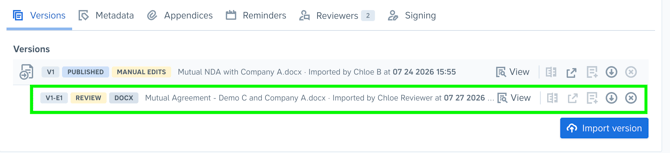
The uploaded file is stored as an external version of the document.
External versions are identified using labels such as:
- V1-E1
- V2-E1
The E indicates that the version was uploaded from an external Word document.
Understanding external versions
An externally uploaded version is a static Microsoft Word document.
This means:
- Tracked changes cannot be accepted or rejected directly within Precisely.
- The version cannot be published.
- The document remains a snapshot of the uploaded Word file.
Publishing a reviewed document
If you want to publish the reviewed document—for example, to send it for signing or another review—you'll first need to create a new main version.
There are two approaches, depending on whether you want to preserve the original Word formatting.
Option 1: Keep the document in Microsoft Word (recommended)
If preserving the Word formatting is important:
- Download the external version

- Open it in Microsoft Word.
- Accept or reject the tracked changes in Word.
- Save the document.
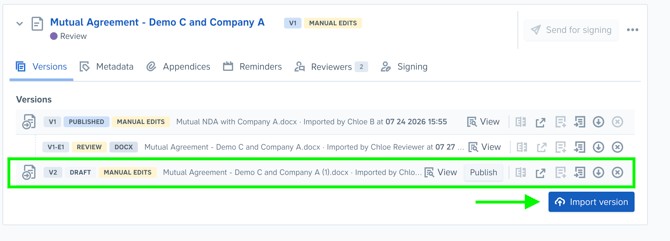
- In Precisely, select Import version.
- Upload the updated Word file.
This creates a new main version (for example, V2) that can be published and used in the rest of your workflow.
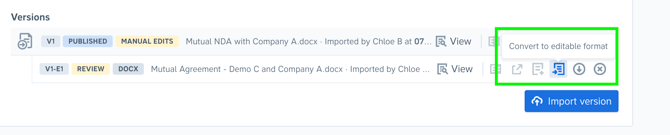
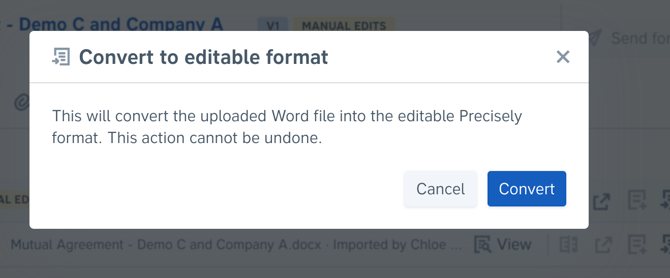
Option 2: Convert the external version into a Precisely document
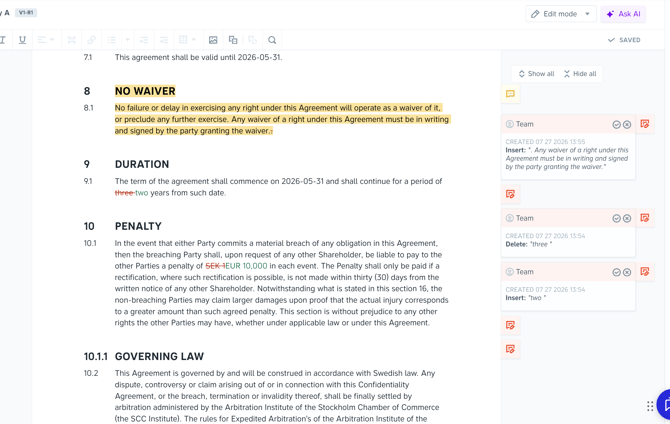
If you want to continue editing the document within Precisely, convert the external version into a Precisely document.
Once converted, you can review and manage the document using Precisely's editing capabilities before publishing it.
Version example
A typical review process might look like this:
| Version | Description |
|---|---|
| V1 | Original document created in Precisely. |
| V1-E1 | External Word version uploaded by the reviewer. This version cannot be published. |
| V2 | New main version created by importing the reviewed Word document. This version can be published, sent for signing, or shared for further review. |