
Creating Conditions For Approvals
You can define conditions that determine when a specific person is included as an approver on a contract. For example, an approver can be added only when the deal value exceeds a certain threshold.
If no conditions are set, all approvers will be included in every contract generated from the template.
How to Create Approval Conditions
- Add a new approver
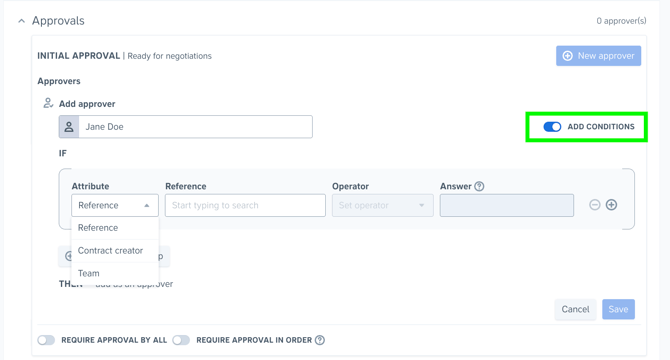
- Enable the “Add conditions” switch
- Configure the conditions for when the approver should be included
You can base conditions on the following options:
- Reference
Use answers from the drafting questionnaire to set conditions. This is useful when an approver should only be added if specific criteria are met, such as a contract value exceeding a set amount. - Contract creator
Use this to set conditions based on who is drafting the contract. For example, a manager may only need to approve contracts created by certain individuals. - Team
Use this to set conditions based on the team of the contract creator. This is useful when different departments require different approvers.
Creating Condition Groups
For each approver, you can combine rules using logical operators:
- AND
- OR
Each condition group can only use one operator (either AND or OR). All conditions within the same group use that operator.
Adding conditions to a group
To add a condition within an existing group:
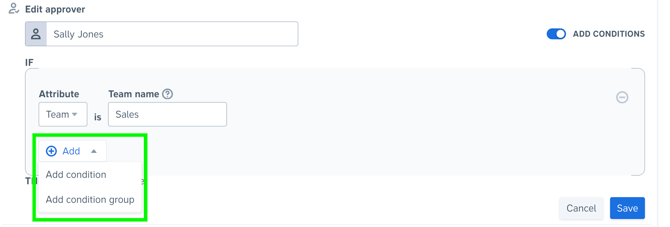
- Click the + Add button and select Add condition
The selected operator for the group will automatically apply to all conditions within that group.
Creating additional condition groups
If you need to combine different logic types (for example both AND and OR), create additional condition groups.
- Click the + Add button and select Add condition group
- Select how the new group should connect to the existing conditions (AND or OR)
- Add the required conditions to that group
Each condition group can use a different operator, allowing you to build more complex approval logic.
Note: The top-level operator applies to the group structure. If needed, you can replace an individual rule with a condition group to create the desired logic structure.
Example Approval Conditions: 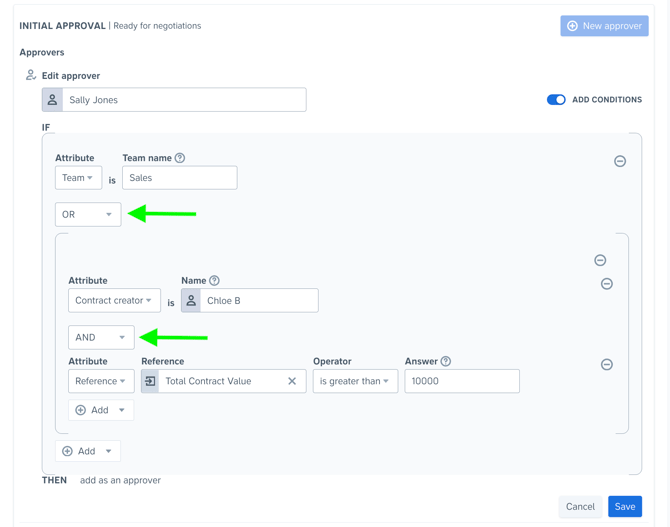
Sally Jones is added as an approver if:
Team name is Sales
OR
(Contract creator is Chloe B
AND
Total Contract Value is greater than 10,000)
Merging Duplicate Approvers
If an approver appears multiple times within a single template, you can merge them into a single entry. This consolidates all associated rules into one set.
This is especially useful for legacy configurations created before OR logic was supported, where multiple separate approver entries may have been used.
How to Merge Duplicate Approvers
- Click “Merge duplicate approvers”
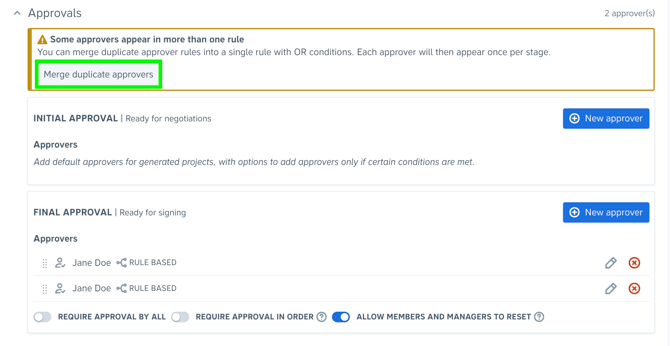
- Review the existing rules and the merged rule that will be created
- Click “Merge approvers” to confirm
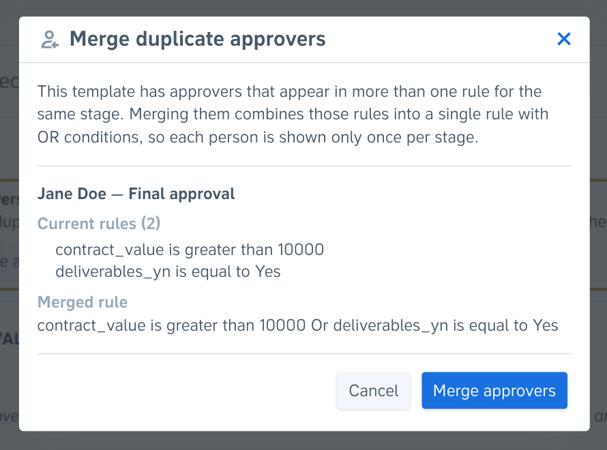
Once merged, all duplicate approver entries will be automatically removed, and all rules will be consolidated into a single rule set.
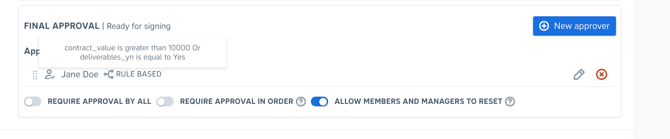
Note: After merging, the approver will be listed in the first position where they originally appeared in the approvals list order prior to merging.