
Workflow Types in Precisely
Precisely supports two different workflow types:
-
Draft & Sign workflows
-
Archiving workflows
Each workflow type is designed for a specific use case and follows a different lifecycle.
When you click New template, you must select which workflow type the template should use. This choice determines which steps and functionality will be available in projects created from that template.
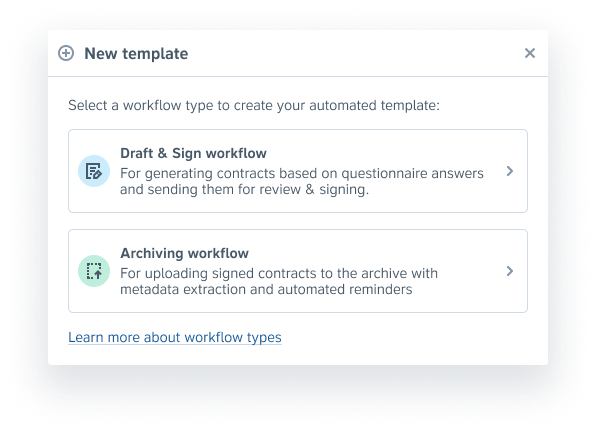
Important note: The workflow type cannot be changed after the template has been created.
Drafting Workflows
Drafting workflows are used when a contract is created inside Precisely and goes through its full lifecycle before being finalized.
This is the standard contract process.
What Drafting Workflows Support
-
Template-based contract drafting
-
Conditional logic and dynamic clauses
-
Review steps
-
Approval automation
-
Default signees
-
Electronic signing
-
Metadata validation before signing or final approval, depending on organization settings
Typical Flow
Draft → Approval → Review → Approval → Signing → Complete
Use drafting workflows when:
-
The contract is created in Precisely
-
Legal or business approvals are required
-
The agreement is negotiated
-
Signing happens through Precisely
This workflow type works as it always has.
Archiving Workflows
Archiving workflows are used when a contract has already been drafted and signed outside of Precisely and needs to be registered in the Archive.
This workflow type is streamlined and removes steps that are not relevant for already executed contracts.
What Archiving Workflows Do Not Include
-
No review step
-
No approvals
-
No signing
-
No default signees
Instead, the flow is simplified to: Upload → Validation (optional)→ Complete
Why Archiving Workflows Exist
When users upload externally signed contracts directly into the Archive, those documents often lack structured metadata.
Without structured metadata:
-
Search becomes less effective
-
Filtering is limited
-
Reporting becomes unreliable
-
AI insights lose accuracy
Archiving workflows ensure that contracts are properly registered and enriched with metadata at the time of upload.
How Archiving Workflows Behave
When a project is created using an archiving workflow template:
-
The Review step is removed from the workflow indicator
-
The Signing step is removed from the workflow indicator
-
The Review and Signing tabs are hidden
-
The Send for signing button is hidden
-
The Approval accordion is hidden
-
A Complete project button is displayed in the header
The project lifecycle focuses on registration rather than negotiation.
Metadata Validation and Archiving Workflows
Archiving workflows interact with the organization setting:
Require metadata validation in projects
This determines how the final registration step works.
Archiving Workflow + Metadata Validation ON
Flow: Draft → Validate metadata → Complete
Users must validate metadata before completing the project.
In this case:
• Documents in Draft cannot be manually set to Complete
• The option to change document status to Complete is removed
• Completed documents can only be moved back to Draft
If the organization also has Enable AI for metadata validation enabled:
• A Validate with AI button is displayed
• All documents in the project appear in the selector
• Precisely documents without manual edits are pre-selected
• Imported documents and documents with manual edits must be manually confirmed
When the project is completed:
• All documents and the project are marked as Complete
This ensures consistent and structured metadata across the archive.
Archiving Workflow + Metadata Validation OFF
Flow: Draft → Complete
When the user selects Continue in the project draft:
• The project and all documents are automatically marked as Complete
• The user is redirected to the project page
• A success notification is displayed
If a document is manually moved back to Draft, the Complete project button becomes available again.
Drafting Workflows and Metadata Validation
For drafting workflows, metadata validation behaves as before.
If metadata validation is required by the organization:
• Validation must occur before final approval or signing
If not required:
• The workflow proceeds normally through review, approval, and signing.
Tracking and Reporting
To support analytics and reporting, workflow type is tracked.
The following events include a property:
template_type: "draft" | "archive"
• Matter draft created
• Matter draft continued
• Matter draft completed
Template creation is also tracked, including whether it is a drafting or archiving workflow.
This allows organizations to distinguish between contracts created inside Precisely and contracts registered after external signing.
When to Use Each Workflow Type
Use a Drafting Workflow when:
• The contract is created in Precisely
• It requires review, approval, or negotiation
• Signing happens through the platform
Use an Archiving Workflow when:
• The contract has already been signed externally
• You only need to upload and register it
• The focus is structured metadata and reporting
Selecting the correct workflow type ensures a smooth experience for users and improves the overall quality of your contract archive.