
Precisely reminders can be configured on the template level to apply automatically to documents created from the template. You can also configure reminders directly on already-drafted documents.
Reminders can be sent once or set up to repeat at regular intervals. If a reminder has already been sent, you can also schedule it again to set a new date for the next reminder.
1. Set up a recurring reminder on a template
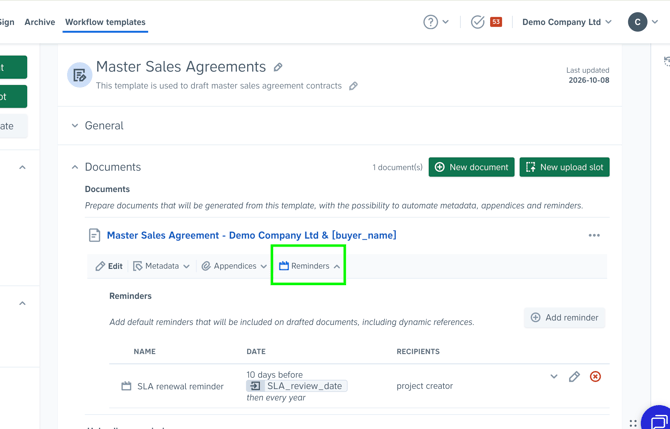
You can configure recurring reminders on templates so that the reminder schedule is automatically applied to documents created from the template.
To set up a recurring reminder:
- Add a reminder to a document in the template, or to the Uploaded Files section if you are configuring an intake or archiving workflow.
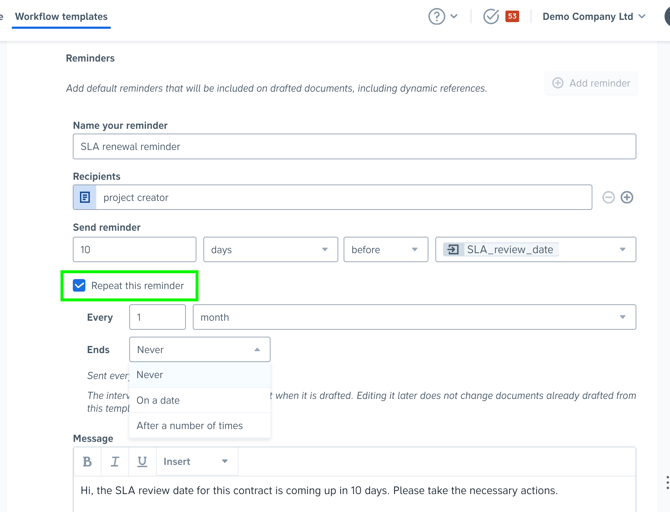
- Select the Repeat this reminder checkbox.
- Set the reminder interval. You can choose to repeat the reminder every day, week, month, or year, and specify the interval, such as every 2 weeks or every 3 months.
- Choose when the recurring schedule should end:
- Never: The reminder continues repeating without a set end date.
- On a specific date: The reminder schedule ends on the selected date.
- After a number of times: The reminder schedule ends after the specified number of occurrences.
- Click Save.
The reminder schedule will apply to all documents drafted from the template.
2. Set up or edit a recurring reminder on an existing document
You can also create or update a recurring reminder on a document that has already been drafted.
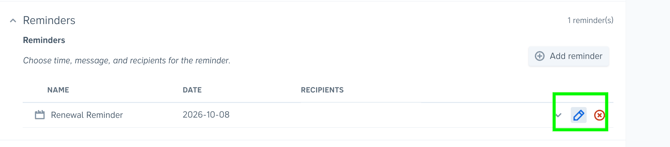
To do this, open the reminder from either:
- The project containing the document
- The document overview page in the Archive
Edit the reminder and follow the same steps described above to enable Repeat this reminder, configure the interval, and choose when the schedule should end.
3. Schedule a sent reminder again
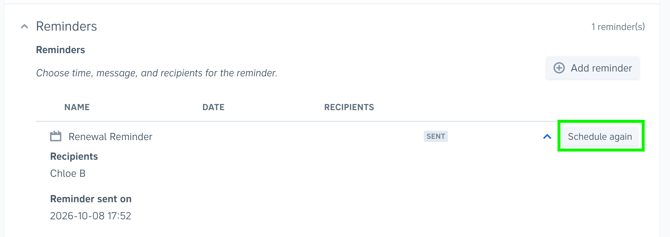
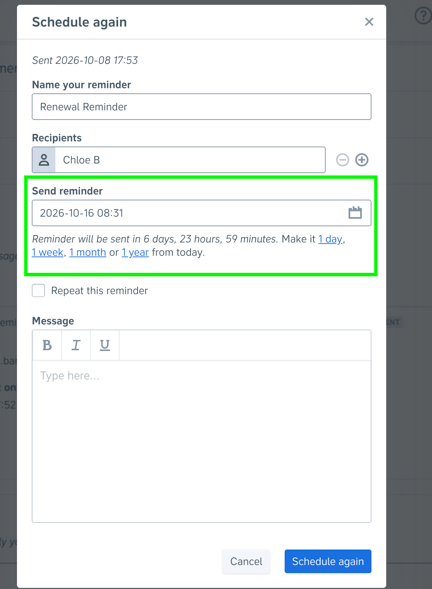
If a reminder has already been sent and you want to postpone it or schedule another reminder, use the Schedule again option.
To reschedule a reminder:
- Open the reminder that has already been sent.
- Click Schedule again.
- Choose when the next reminder should be sent. You can select a specific date and time or use one of the quick options to schedule it for 1 day, 1 week, 1 month, or 1 year later.
- The new reminder will be added to the document.
4. Handle invalid reminder recipients
A reminder recipient may become invalid, for example, if the person is removed from your Precisely organization.
When this happens:
- A red Not sent label appears next to the recipient's name.

- The person who created the reminder receives an email notification and an alert on the Precisely home page.
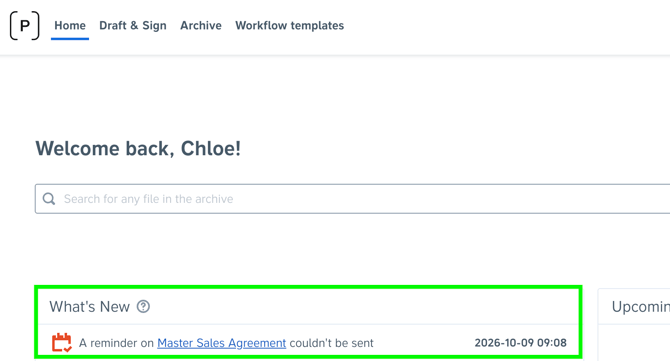
- If the reminder creator is no longer part of the organization, all Admins receive the notification instead.
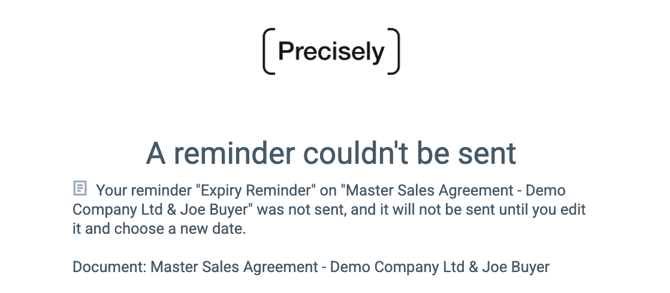
To resolve the issue, edit the reminder to update the recipient or other reminder details, or delete the reminder if it is no longer needed.