---
title: How do I use folders to categorize my contracts?
description: Learn how to use folders to categorize and sort your contracts
---
[Skip to content](https://help.precisely.se/en/articles/1978479-how-do-i-use-folders-to-categorize-my-contracts#main-content)
[](https://preciselycontracts.com/)
Open main navigation
Close main navigation
- [Go to preciselycontracts.com](https://preciselycontracts.com/)
[Go to preciselycontracts.com](https://preciselycontracts.com/)
Hello! How can we help you?
- There are no suggestions because the search field is empty.
1. [Help Center](https://help.precisely.se/en?hsLang=en)
2. [Automated Templates & Documents](https://help.precisely.se/en/automated-templates-documents?hsLang=en)
3. [Precisely Archive](https://help.precisely.se/en/automated-templates-documents?hsLang=en#precisely-archive)
# How do I use folders to categorize my contracts?
## Learn how to use folders to categorize and sort your contracts
Folders can be used to gather contracts of the same type or those belonging to a certain project in one place.
### Creating folders and subfolders
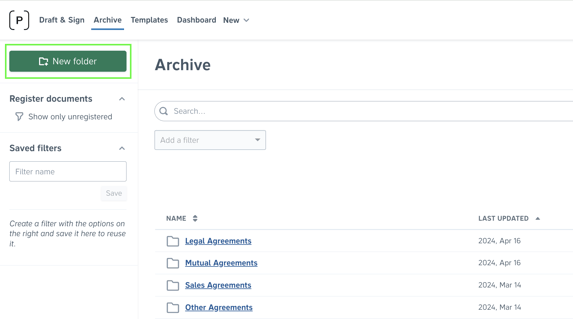
To create folders, simply
1. Click *Archive* in the top menu,
2. Click the green *New* *folder* button in the top left,
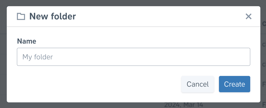
3. Name your folder and click the blue *Create* button.
To create subfolders, simply click the main folder to open it and repeat the steps above.
### 
### Moving items into folders
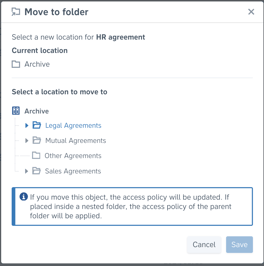
To move a contract or folder into a folder, simply
1. Click *Archive* in the top menu,
2. Click the O*ptions* button (the three dots) on the right-hand side of the contract or folder you wish to move,
3. Click the *Move to* button, choose the folder that you want to move the item to and click the blue *Save* button.

⚠️ Please note that **you can only move one document at a time**. Therefore, we suggest creating folders as the **first step** before uploading or automating multiple documents to directly end up in a folder. Read more below👇
### Automated folder destinations for Precisely documents
Setting up automated archiving for templates means that all contracts created from the template will be automatically stored in the correct folder. Automated archiving rules on templates enables the following:
- documents will automatically be located in the correct *Archive* folder, eliminating the need to manually move them one-by-one in the *Archive*
- teams with access to the specific folder will automatically get access to:
- documents in the folder in ***Archive***
- corresponding projects in ***Draft & Sign***
[See how to set up automated archiving on a template level](https://help.precisely.se/en/articles/2339151-how-does-automated-archiving-work?hsLang=en)
### Importing external documents into the Precisely Archive
Contracts created and electronically signed through Precisely are automatically stored in your digital archive. However, your legacy contracts and manually signed documents can be easily imported.
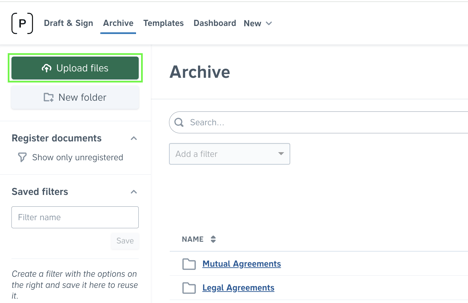
To import contracts, simply
1. Click *Archive* in the top menu,
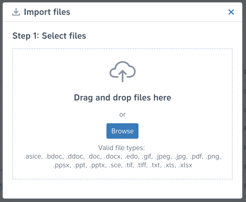
2. **Open a specific folder where you want to import documents**. Then, click the green *Upload files* button to the top left.
3. Browse and select the files you wish to import into the folder.
****
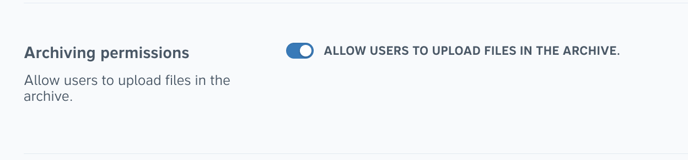
**⚠️ Note: To import documents directly into the Archive, uploading permissions must be enabled by an Admin user in Organization settings:**
****
**P.S:** Would you like to import all your old contracts and connect metadata and other Precisely features to them? Precisely can help! [Read more about our migration service](https://help.precisely.se/en/migration-of-legacy-contracts?hsLang=en).
Any questions remaining? [Get in touch](https://help.precisely.se/en/articles/2446671-how-do-i-contact-precisely?hsLang=en)!
- [The Precisely Platform: Key Features & Tools](https://help.precisely.se/en/the-precisely-platform-key-features-tools?hsLang=en)
- [Automated Templates & Documents](https://help.precisely.se/en/automated-templates-documents?hsLang=en#main-content)
- [Building & Managing Templates](https://help.precisely.se/en/automated-templates-documents?hsLang=en#building-managing-templates)
- [Working with References](https://help.precisely.se/en/automated-templates-documents?hsLang=en#working-with-references)
- [Conditional Logic & Automation](https://help.precisely.se/en/automated-templates-documents?hsLang=en#conditional-logic-automation)
- [Formatting & Content Styling](https://help.precisely.se/en/automated-templates-documents?hsLang=en#formatting-content-styling)
- [Collaboration & Negotiation](https://help.precisely.se/en/automated-templates-documents?hsLang=en#collaboration-negotiation)
- [Document Management & Versioning](https://help.precisely.se/en/automated-templates-documents?hsLang=en#document-management-versioning)
- [Precisely Archive](https://help.precisely.se/en/automated-templates-documents?hsLang=en#precisely-archive)
- [Control & Compliance](https://help.precisely.se/en/control-compliance?hsLang=en#main-content)
- [Access & Permissions](https://help.precisely.se/en/control-compliance?hsLang=en#access-permissions)
- [Approval Automation](https://help.precisely.se/en/control-compliance?hsLang=en#approval-automation)
- [Monitoring & Logs](https://help.precisely.se/en/control-compliance?hsLang=en#monitoring-logs)
- [Reviewer Permissions & Notifications](https://help.precisely.se/en/control-compliance?hsLang=en#reviewer-permissions-notifications)
- [Security & Authentication](https://help.precisely.se/en/control-compliance?hsLang=en#security-authentication)
- [Template & Draft Control](https://help.precisely.se/en/control-compliance?hsLang=en#template-draft-control)
- [Precisely's AI Features](https://help.precisely.se/en/preciselys-ai-features?hsLang=en#main-content)
- [Precisely's AI Assistant](https://help.precisely.se/en/preciselys-ai-features?hsLang=en#preciselys-ai-assistant)
- [FAQs & Troubleshooting](https://help.precisely.se/en/faqs-troubleshooting?hsLang=en#main-content)
- [Getting Started & Account Settings](https://help.precisely.se/en/faqs-troubleshooting?hsLang=en#getting-started-account-settings)
- [Draft & Sign](https://help.precisely.se/en/faqs-troubleshooting?hsLang=en#draft-sign)
- [E-Signing](https://help.precisely.se/en/faqs-troubleshooting?hsLang=en#e-signing)
- [Users & Permissions](https://help.precisely.se/en/faqs-troubleshooting?hsLang=en#users-permissions)
- [Language Settings](https://help.precisely.se/en/faqs-troubleshooting?hsLang=en#language-settings)
- [General Information](https://help.precisely.se/en/faqs-troubleshooting?hsLang=en#general-information)
- [Integrations](https://help.precisely.se/en/integrations?hsLang=en#main-content)
- [AI Features](https://help.precisely.se/en/integrations?hsLang=en#ai-features)
- [Precisely's API](https://help.precisely.se/en/integrations?hsLang=en#preciselys-api)
- [Precisely's Microsoft Outlook Integration](https://help.precisely.se/en/integrations?hsLang=en#preciselys-microsoft-outlook-integration)
- [Custom SMTP](https://help.precisely.se/en/integrations?hsLang=en#custom-smtp)
- [Electronic Signature](https://help.precisely.se/en/electronic-signature?hsLang=en#main-content)
- [Signing Providers & Methods](https://help.precisely.se/en/electronic-signature?hsLang=en#signing-providers-methods)
- [National eID Integrations](https://help.precisely.se/en/electronic-signature?hsLang=en#national-eid-integrations)
- [Pricing, Privacy & Terms](https://help.precisely.se/en/pricing-privacy-terms?hsLang=en)
- [New in Precisely](https://help.precisely.se/en/new-in-precisely?hsLang=en)
[](https://www.preciselycontracts.com)
Precisely's Help Center
Copyright © 2025, Precisely AB